
Passport Photo Background Removal: Rules, Risks, and the Right Way to Do It
Digital background replacement is explicitly prohibited by Australia and India, prohibited as “digital alteration” by the United States, and not explicitly banned by the United Kingdom. Where it is permitted, what decides acceptance is the artifacts left behind — not the act of editing.
Every passport authority requires a plain, uniform background, but the accepted colour and the editing policy differ by country. The practical failure point for home-taken photos is rarely the removal itself: it is the halo around hair, the uneven fill, or the shadow carried through into the replacement layer. Those are what automated validators flag, and a rejection typically means resubmission and a delay of weeks.
Passport Photo Maker checks background colour, uniformity and edge quality before you export.
Is background removal allowed? Quick answer by country
Background replacement is a policy question, not a technical one. Four of the six largest authorities restrict it in their published guidance. Check your destination before you edit.
| Country | Accepted background | Published editing policy | Removal advisable? |
|---|---|---|---|
| United States | White or off-white | Photos must not be digitally altered or enhanced | Not per policy — shoot compliant |
| United Kingdom | Plain light grey or cream | No explicit prohibition on background replacement | Yes, if artifact-free |
| Canada | White or light-coloured | Photos must not be altered | Not per policy |
| Australia | Plain, light-coloured | No retouching, including removal of background | No — explicitly banned |
| India | Plain white only | Photos should be unaltered by computer software | No — explicitly banned |
| Schengen / EU | White, off-white or light grey | Varies by member state; Germany prefers light grey | Check the consulate |
Where policy prohibits editing, the reliable route is to photograph against a compliant wall in the first place. Our background colour rules page lists the exact shade each authority expects, and the lighting requirements page covers the setup that avoids needing removal at all.
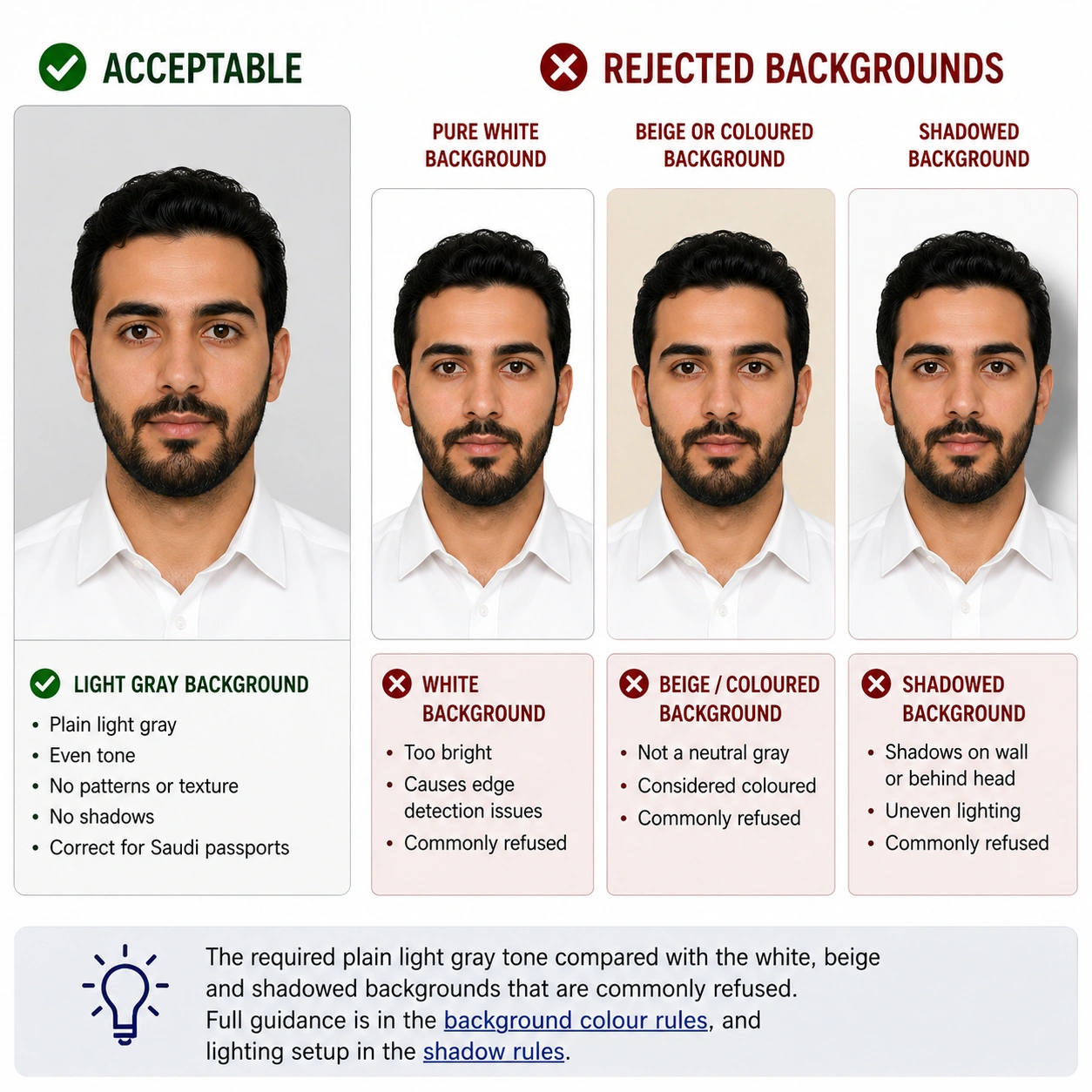
What Passport Photo Maker Checks for Background Compliance
On upload, the tool evaluates the background region before anything else. These are the same four properties an official validator measures:
- Background colour — measures the actual luminance and hue of the background region against your target country's specification, and flags a background that is too dark, too warm, or not uniform.
- Edge quality — checks for halos, fringing or incomplete removal around hair, ears and shoulders. These are the most common artifacts behind automated rejection.
- Shadow detection — identifies shadows cast onto the background by poor lighting or standing too close to a wall. Some tools replace the wall but leave the shadow shape behind.
- Uniformity scan — confirms the replacement is consistent edge to edge. Gradient fills that look fine on screen routinely fail automated validators.
You do not have to guess whether the background meets spec — the tool reports it and corrects it before export. Output is available as a print sheet and as a single digital file sized to your country's pixel and file-size requirements. For every other check beyond background, use the full Passport Photo Maker, or browse the complete passport photo rules library.
What the Passport Photo Background Rules Actually Say
The core requirement is consistent worldwide: your photo must show you against a plain, uniform, light-coloured background with no other people, objects, patterns or shadows visible. This derives from ICAO Doc 9303, the standard governing machine-readable travel documents.
Background removal becomes relevant when the photo you already took does not have a compliant background — a beige wall, a bookshelf, an outdoor scene. Replacing it digitally is a practical fix where the authority permits editing, and where the result is clean enough to pass validation.
The four-part requirement
| Requirement | What it means in practice |
|---|---|
| Plain and uniform | No gradients, no patterns, no objects. One consistent colour from edge to edge. |
| Correct colour for the country | White (US, India), light grey or cream (UK), light-coloured (Australia, Canada, Schengen). See background colour rules. |
| No visible editing artifacts | No halos, fringing, unnatural edges, or lighting that contradicts the subject. |
| No shadows on the background | Including after removal — residual shadow shapes in the replacement layer still fail. |
Where guidance gets nuanced is the gap between stated policy and automated enforcement. The US Department of State states photos must not be digitally altered, yet its validator assesses the submitted image rather than the editing history. A genuinely uniform, artifact-free replacement passes the same checks as a photo taken against a real white wall. That is a description of how the system behaves, not permission — the stated policy still prohibits alteration, so photographing compliantly remains the lower-risk route.
Why Passport Photos Need a Uniform Background
The requirement exists for biometric processing, not aesthetics. A plain background enables each stage of the pipeline:
- Face detection — the system isolates your face by determining where subject ends and background begins. Texture and clutter make that boundary less reliable.
- Biometric template extraction — once isolated, the system maps landmarks such as eye spacing, nose position and jawline. Background noise interferes with edge detection around the head and ears.
- Colour calibration — a known light background gives the system a reference point for assessing skin tone consistently.
- Border control matching — at an e-passport gate a camera captures your face and compares it to the chip image. Consistent subject separation improves that match.
This is why a background that looks white to your eye can still fail. A cream wall reads as a measurably different value to a scanner, which compares pixel values rather than making a judgment call. Related technical constraints are covered in photo quality requirements and resolution rules.
What Counts as a Background Violation
Not every imperfect background triggers rejection. Automated systems apply thresholds; manual reviewers look for specific flags. These are what actually cause a failure:
Definite rejection triggers
- Visible objects, people or furniture in the background
- Patterned or textured background — wallpaper, fabric, wood panelling
- Dark or strongly coloured background
- Visible halo or light outline around the subject, indicating poor removal
- Gradient background, lighter on one side than the other
- Hard shadow cast by the subject onto the background area
Discretionary — may pass manual review
- A slight off-white tint close to the acceptable boundary
- A soft shadow that does not materially break uniformity
- A background that is light-coloured but not the ideal shade for the country
The distinction matters because automated checks are binary while manual reviewers can exercise judgment. If an online portal rejects your photo automatically, resubmitting with a clearly compliant background is faster than pursuing a review. The broader failure list is in passport photo rejection reasons and common mistakes.
Digital vs. Print Submission — Does Background Removal Behave Differently?
Yes, and this catches applicants out. The same replacement can pass in one format and fail in the other.
Digital submission via online portals
- Automated pixel analysis measures background colour values directly
- JPEG compression introduces colour noise at subject edges that was not visible in the original
- File format, resolution and colour profile all affect how the background renders to the validator
- Portal file-size ceilings force compression that can degrade edge quality — see compressing to 240 KB and digital photo requirements
Print submission
- Printing shifts background colour slightly — a screen-perfect white can print as very light grey
- Edge artifacts are less visible at final print size, whether 2×2 inch or 35×45 mm
- Matte versus glossy paper affects perceived uniformity under scanner lighting
- Paper choice and cutting are covered in printing at home
Passport Photo Maker calibrates the replacement colour differently for each destination, using a marginally brighter white for print-bound files to offset the printing shift. If you need to hit an exact pixel target first, see resizing to 600×600, and if your camera saves HEIC, convert first with the HEIC to JPEG guide.
How Photo Reviewers and Algorithms Check Your Background
Knowing what the system inspects helps you pass first time. The typical validation sequence:
- Background region isolation — the system determines which pixels are background versus subject by detecting the head and shoulder outline, then analysing everything outside it.
- Colour uniformity measurement — within that region it measures colour variance. Variance above the accepted threshold is flagged as a non-uniform background.
- Luminance check — average background brightness is compared against the acceptable range for the destination. Too dark fails.
- Edge transition analysis — the subject-to-background boundary is examined. Abrupt or unnatural transitions, especially through hair, are flagged.
- Shadow detection — darker regions within the background that follow the subject silhouette indicate cast shadows.
A well-executed replacement clears all five, because it produces the same output as a compliant wall. A poor one usually fails at steps 2 and 4 — uneven colour from incomplete removal, and visible edge processing. Head and framing checks run alongside these; see face size requirements and the crop guide.
Background Rules for Child and Infant Passport Photos
Background requirements for children are identical to adults — plain, uniform, correct colour. No major authority relaxes them for children, and validators apply the same thresholds.
Children's photos simply need background work more often, because:
- Infants are often photographed on a white sheet, where wrinkles and fabric texture break uniformity
- Young children are photographed at home with furniture, toys or car seats in frame
- A parent may be supporting the child, leaving hands or arms visible in the background area
- High chairs, bouncers and changing mats introduce pattern and colour
The same quality bar applies: no halos, no uneven edges, uniform replacement colour. Note that Australia and India prohibit background removal for children exactly as they do for adults — there is no exemption. For technique that avoids needing removal, see the baby passport photo at home guide.
Taking Your Photo at Home: Background Checklist
Before taking the photo
- Stand at least 50 cm (20 inches) from the wall so you do not cast a shadow onto it
- Use a white or light grey wall where possible — less correction needed, less risk
- Clear wall decorations, shelves, switches and outlets from the frame
- Light the background separately if you can; a lamp aimed at the wall reduces shadow intensity
- Avoid white or very light clothing against a white background — it confuses subject separation and the dress code rules discourage it anyway
After taking the photo, before any removal
- Check that hair is not blending into the background; dark hair on a dark wall separates poorly
- Confirm there is empty background on all sides of your head — the tool needs context pixels
- Look for hard shadows on the wall. If present, retake with adjusted lighting rather than relying on software
- Confirm ears, jawline and shoulders read clearly against the background
After background removal
- Zoom to 200% and inspect hair, ears and shoulders for halos or fringing
- Check the replacement is uniform — no gradient, no darkening toward the corners
- Verify the lighting on your face is consistent with a front-lit setup; replacement does not fix contradictory facial shadows
- Run the compliance check to confirm the background passes your destination's thresholds
How to Replace a Passport Photo Background Correctly
This applies where your destination permits editing. If you are applying to Australia or India, photograph against a compliant background instead.
- Photograph against any clean, uncluttered backdrop A plain wall works even if the colour is not perfectly white. Avoid patterned wallpaper, outdoor scenes and visible objects. A single-colour backdrop gives the removal the best starting point.
- Upload and select your destination country The tool loads the correct background specification for that authority rather than defaulting to a generic white.
- Let the tool remove and replace the background It detects the subject, removes the original background and fills with the required colour, using edge-aware processing to limit halos around hair and shoulders.
- Inspect edge quality and uniformity Check hair, ears and shoulders for outlines, jagged edges or colour bleed. The compliance checker flags these, but a visual pass at full zoom confirms it.
- Export for print or digital Download a print sheet for physical submission, or a single digital file matching your country's pixel and file-size requirements. The background colour is locked to specification in both.
Why Passport Photos Get Rejected for Background Violations
Background problems are a frequent cause of automated validation failure. These are the specific triggers tied to removal and replacement:
Halo or light fringe around hair and ears
The algorithm leaves a visible outline where it could not cleanly separate fine hair from the original background.
Fix: use edge-aware processing, or retake against a background that contrasts with your hair colour. See hair rules.
Uneven replacement colour — gradient or patchy fill
The replacement is not perfectly uniform. Some tools apply a subtle radial gradient or leave different brightness in the corners.
Fix: verify uniformity at 100% zoom before export. The whole background should measure one value.
Residual shadow carried into the replacement layer
The original had a shadow on the wall. The tool replaced the wall but preserved the shadow's shape as a darker region in the new background.
Fix: retake further from the wall with more even lighting. See shadow rules.
Background colour outside the accepted range
The fill is technically light but does not match the destination's requirement — common with tools that default to light grey where white is required, or the reverse.
Fix: use a country-specific specification, not a generic background eraser. See background colour rules.
Incomplete removal — original background still visible
Parts of the original remain, typically in gaps between arm and body or between hair strands, producing a mixed-colour background that fails uniformity.
Fix: confirm all background areas are covered, including small gaps, before exporting.
Clothing blending into the replacement background
White or very light clothing merges with a white fill, so the system cannot resolve the shoulder boundary.
Fix: wear clothing that contrasts with the target background. See dress code rules.
JPEG compression artifacts at the subject boundary
Compression introduces colour noise precisely at high-contrast edges — where your subject meets the replacement fill.
Fix: export at high JPEG quality, or use PNG as an intermediate before final conversion. See resolution rules.
Passport Photo vs. Visa Photo: Background Differences
For most countries the background specification is the same for both document types. What differs is how compliance is enforced and how the photo is submitted:
| Factor | Passport photo | Visa photo |
|---|---|---|
| Background colour | White or light, country-specific | Same as passport in most cases |
| Automated validation | Strict, especially for online submission | Less consistent; depends on the consulate system |
| Editing policy | US, Canada, Australia and India restrict alteration | Canada states visa photos must not be altered |
| Submission format | Increasingly digital-first | Often still physical prints at a centre or consulate |
| Consequence of rejection | Application stalls pending resubmission | May delay processing or require an in-person retake |
The practical takeaway: use the same compliant background for both. Specifications align closely enough that a correctly processed background satisfies both document types in almost all countries. The notable exception is Schengen consulates that prefer light grey for visa applications — see the Schengen visa photo page, or browse all visa photo requirements by country. Once the background is settled, confirm your photo size dimensions.
Frequently Asked Questions
Policy & legality
Is it legal to digitally remove the background from a passport photo?
Background replacement is not illegal anywhere, but policy differs by authority. Australia and India explicitly prohibit retouching and background removal in their published guidance. The United States prohibits digitally altered photos. The United Kingdom does not publish an explicit prohibition on background replacement. Where replacement is not explicitly banned, what matters in practice is whether the final image is uniform and artifact-free, because that is what automated validators measure.
Does the US State Department reject photos with digitally replaced backgrounds?
The Department of State's published guidance states that photos must not be digitally altered or enhanced. Its automated validator assesses the submitted image rather than the editing history, so a genuinely uniform white background with no visible processing artifacts passes the same checks as a photo taken against a real white wall. A replacement that leaves halos or uneven colour will fail. Because the stated policy prohibits alteration, photographing against a compliant background remains the lower-risk route.
Australia says no retouching including removal of background. Can I still use background removal?
No. The Australian Passport Office's published photo guidance explicitly prohibits retouching including background removal, which is one of the strictest positions among major authorities. For an Australian passport application, photograph against a compliant plain light-coloured background from the start. Digitally replacing the background would contradict the stated requirement regardless of output quality.
Colour & specification
What colour should the background be after removal?
It depends on the issuing country. The United States requires white or off-white. India requires plain white. The United Kingdom accepts a plain light grey or cream. Australia requires a plain light colour that contrasts with the face and hair. Canada requires white or light-coloured. Schengen states accept white, off-white or light grey, with German consulates commonly preferring light grey. Set the replacement colour to your specific destination before exporting.
Detection & quality
Will automated passport photo systems detect that my background was replaced?
Validators do not run forensic manipulation detection. They measure four things in the background region: colour uniformity, average brightness against the country range, the quality of the edge transition around the subject, and whether darker regions follow the subject silhouette. A clean replacement passes all four the same way a real compliant wall does. Detection happens when the replacement is poor, leaving a halo, an uneven fill or a residual shadow.
What if my background removal leaves a halo around my head?
Do not submit it. A visible halo or light outline around the head, hair or shoulders fails on two counts at once: it breaks background uniformity and it creates an unnatural subject-to-background edge transition. Redo the removal with a tool that handles fine hair edges, or retake the photo against a background that contrasts with your hair colour.
Can background removal fix a shadow on the wall behind me?
Only partially, and it often makes things worse. If a hard shadow falls on the wall, many tools replace the wall but carry the shadow's shape through as a darker region in the new background, which fails the uniformity check. Shadows on your face are not addressed by background replacement at all. Retake the photo standing further from the wall with more even lighting instead.
Workflow & tools
Should I remove the background before or after cropping to passport size?
Remove the background first. The full-frame image gives the algorithm more surrounding context to separate hair and shoulders accurately. Cropping first discards the context pixels the tool needs and typically produces worse edges. Process the full image, then crop to your country's dimensions.
Can I use a phone app to remove my passport photo background?
You can, but quality varies widely. General-purpose background erasers are optimised for social images and commonly struggle with the exact areas validators inspect most closely: individual hair strands, the ear outline and the shoulder transition. They also fill with a generic white rather than the specific shade your destination requires. A tool that knows the target country's background specification is more reliable.
Do child passport photos have different background removal rules?
No. Background colour and uniformity requirements are identical for children and adults across all major authorities, and validators do not apply a separate standard to child photos. Children's photos simply need background work more often, because home photographs commonly include furniture, blankets, car seats or a parent's hands in frame.
Official Sources & References
- U.S. Department of State, Bureau of Consular Affairs — passport photo requirements: travel.state.gov
- HM Passport Office, United Kingdom — photos for passports: gov.uk
- Immigration, Refugees and Citizenship Canada — passport photo specifications: canada.ca
- Australian Passport Office — photo guidelines: passports.gov.au
- Passport Seva, Ministry of External Affairs, India: passportindia.gov.in
- European Commission — Schengen borders and visa policy: home-affairs.ec.europa.eu
- ICAO Doc 9303 — Machine Readable Travel Documents: icao.int
Check Your Background Compliance Now
You know the policy for your destination and what triggers rejection. Upload your photo to find out in seconds whether the background actually meets the specification — and correct it if it does not. No colour-picking, no manual masking.