Menu
OCI Card Photo Maker Online - 2x2 inch / 51x51 mm Specifications | ClonyPDF

OCI Card Photo Maker Online

Create a fully compliant OCI card photo that meets every official OCI photo specification published by the Ministry of Home Affairs. Get the exact OCI card photo size, plain white background, and correct face positioning for OCI registration, OCI miscellaneous services, or OCI re-issue applications.

  • Official 2x2 inch / 51x51 mm size
  • Auto background correction to plain white
  • Used by global OCI applicants
  • Print and digital ready
  • Output sized for OCI portal upload (10–200 KB)
Create OCI Card Photo
Works for OCI new registration, re-issue, and miscellaneous services applications.
Tool Ready

Create OCI Card Photo Online

Generate an OCI-compliant photo with automatic cropping, positioning, and sizing. Our Passport Photo Maker is pre-configured with the official OCI specifications used by VFS Global, Indian missions abroad, and the OCI portal at ociservices.gov.in. Upload a clear photo of yourself, and the tool produces an upload-ready JPEG plus a printable layout you can use immediately.

  • Official OCI dimensions — 51 × 51 mm (2 × 2 inches)
  • Automatic face detection and centring
  • Background correction to plain white
  • Output sized for OCI portal upload (10–200 KB)
  • Printable 4×6 inch sheet with multiple copies
Create OCI Card Photo
OCI Card Photo Size
2 × 2 in (51 × 51 mm)
Background: Plain white
Format: JPEG colour
File size: 10 KB – 200 KB
Resolution: min. 200 × 200 px

OCI Card Photo Requirements

The OCI (Overseas Citizen of India) application process requires a photo that complies with strict technical specifications. These India OCI photo requirements apply to first-time OCI registration, OCI re-issue after passport renewal, OCI miscellaneous services, and OCI for minor children. Submitting a non-compliant photo is one of the most common reasons OCI applications are returned by VFS Global and the Indian missions.

RequirementSpecification
Photo size2 × 2 inches (51 × 51 mm), square
Width51 mm (2 inches)
Height51 mm (2 inches)
Background colourPlain white only
Head sizeHead must cover 50% to 70% of the frame
Face positionCentred, facing camera directly, no tilt
ExpressionNeutral, mouth closed, both eyes open
GlassesNot allowed; remove all eyewear
Head coveringOnly for religious reasons; face must be fully visible
ResolutionMinimum 200 × 200 pixels; recommended 600 × 600 pixels
File formatJPEG, colour
File size (OCI portal)10 KB to 200 KB
Photo ageTaken within the last 6 months
ShadowsNo shadows on face or background
Filters / editingNo beauty filters or facial alterations allowed

OCI Card Photo Size in MM, CM, and Inches

The OCI card photo must be a perfect square. Many applicants get confused because standard passport photos in India use a rectangular 35×45 mm format. The OCI format is different. Below is the official OCI photo size expressed in every common unit so you can verify your photo before uploading.

UnitWidthHeightShape
Inches2 inches2 inchesSquare
Millimetres (mm)51 mm51 mmSquare
Centimetres (cm)5.1 cm5.1 cmSquare

Important: The Indian passport photo is 35 × 45 mm (rectangular). The OCI card photo is 51 × 51 mm (square). Do not reuse one for the other. See the comparison table below for full details.

When printing OCI photos at home or at a photo studio, ask for a 2×2 inch square print, not the standard passport size. Most photo studios default to the rectangular Indian passport format unless you specifically request the OCI dimensions.

OCI Photo Size in Pixels and Resolution

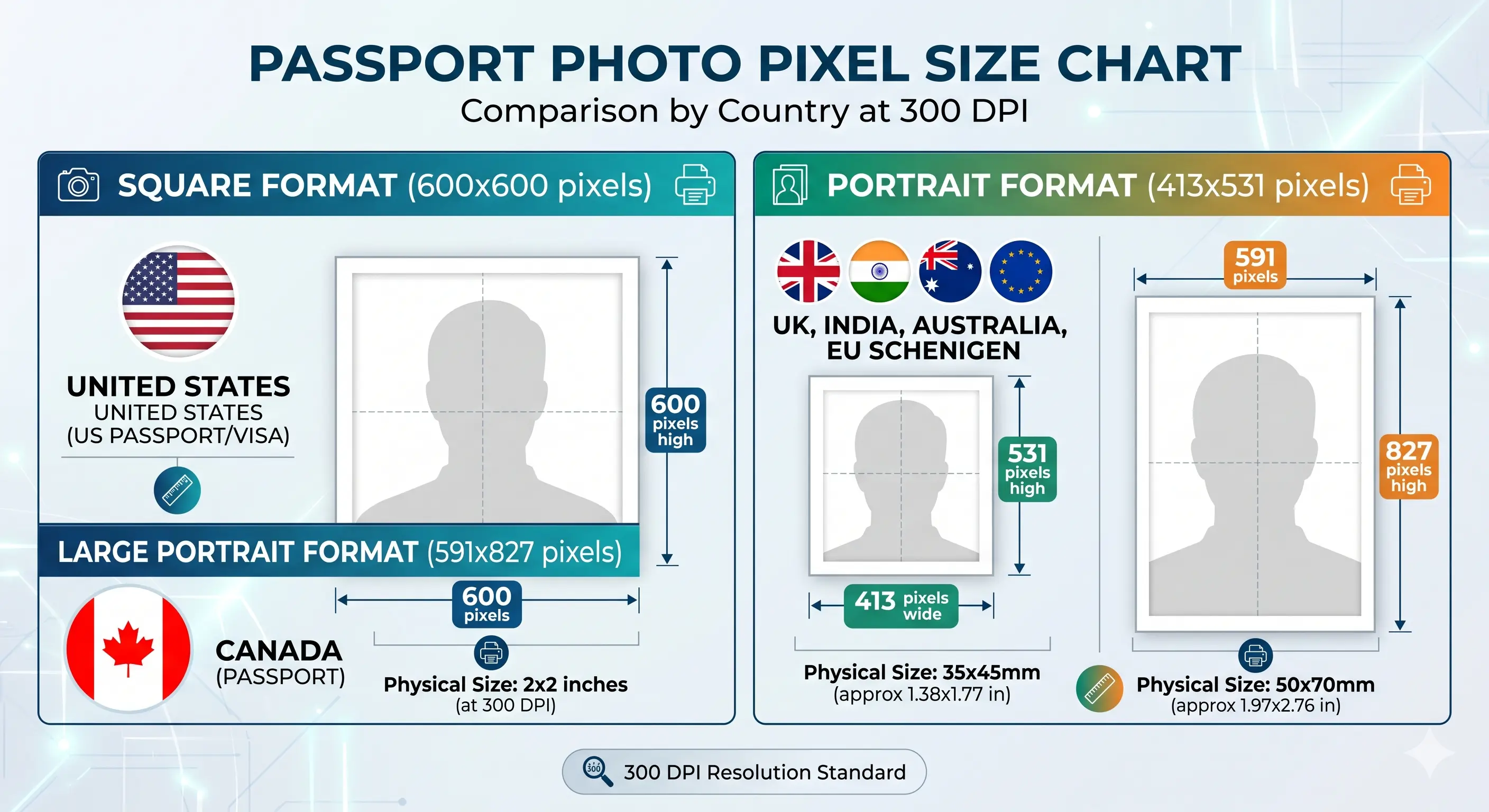
The OCI card photo pixel dimensions depend on the print resolution (DPI) you are working with. The OCI portal accepts JPEG files with a minimum resolution of 200 × 200 pixels. For the best quality — both on screen and in print — a resolution of 600 × 600 pixels at 300 DPI is recommended.

Minimum (OCI Portal)
200 × 200
pixels at 100 DPI
Standard (Web Upload)
400 × 400
pixels at 200 DPI
Recommended (Print Quality)
600 × 600
pixels at 300 DPI
High Resolution
1200 × 1200
pixels at 600 DPI

OCI Photo Pixel Dimensions at Common Resolutions

DPIWidth (px)Height (px)Use Case
72 DPI144 px144 pxBelow minimum — not accepted
100 DPI200 px200 pxOCI portal minimum
150 DPI300 px300 pxAcceptable for digital submission
200 DPI400 px400 pxGood quality digital
300 DPI600 px600 pxRecommended — print and digital
600 DPI1200 px1200 pxHigh-resolution professional print

OCI Portal File Size Limit: Even at 600 × 600 pixels, a JPEG saved at standard compression is well within the 10 KB to 200 KB limit required by the OCI online portal. Our tool automatically compresses the output to stay within the accepted range.

If you are submitting the photo via the OCI services portal at ociservices.gov.in, the system will reject files that fall outside the 10 KB to 200 KB range regardless of pixel dimensions. Our OCI card photo tool handles compression automatically so you do not need to manually adjust the file size.

How to Create an OCI Card Photo Online

The OCI portal is strict about photo dimensions and file size. Creating the right file manually with photo editing software is time consuming and error prone. Our tool simplifies the entire process into a few clicks.

1

Take a Clear Photo

Use a phone or camera to take a clear front-facing photo against a plain white wall. Make sure the photo is sharp and well lit with no shadows on the face or background.

2

Upload to the OCI Photo Tool

Open our OCI photo maker and upload your image directly from your phone, tablet, or computer.

3

Auto Face Detection

The tool detects your face, verifies the head occupies 50–70% of the frame, and confirms the photo meets all official OCI photo specifications.

4

Background and Crop Correction

The system replaces any background with plain white and crops the photo to a perfect 51 × 51 mm square at the recommended resolution.

5

Download the OCI-Ready File

Download a JPEG sized to fit the 10 KB to 200 KB requirement of the OCI portal, along with a printable 4×6 inch layout with multiple copies.

How to Take an OCI Photo Using Your Phone

Most modern smartphones — iPhone, Samsung Galaxy, Google Pixel, and any mid-range Android — produce images at a resolution far exceeding the OCI minimum requirement. You do not need a professional camera or a photo studio to get an approved OCI card photo. Follow these steps to take a compliant OCI photo at home using just your phone.

1

Choose the Right Location

Find a room with a plain white wall. Stand about one metre (three feet) away from the wall to keep shadows off the background. Avoid standing directly under a ceiling light.

2

Use Natural Light

Stand facing a window to get soft, even lighting on your face. Morning or afternoon daylight works best. Avoid flash, which creates harsh shadows and red-eye.

3

Use the Rear Camera

The rear camera has a higher-quality sensor than the selfie camera. Prop your phone on a stable surface or ask someone to take the photo from about one metre away at eye level.

4

Turn Off Beauty Mode

Disable all skin-smoothing, beauty, and portrait mode effects. On iPhone, set Portrait mode to off. On Samsung, disable Beauty Mode in the camera settings. Filters alter facial features and cause rejection.

5

Check Your Appearance

Remove glasses, hats, and large jewellery. Keep a neutral expression with your mouth closed and both eyes fully open. Look directly into the lens.

6

Upload and Format

Upload the photo to our OCI photo maker. The tool crops, resizes, corrects the background, and exports a portal-ready JPEG automatically.

iPhone OCI Photo Tips

  • Use the main wide lens (1×), not the ultra-wide which distorts facial proportions.
  • Tap your face on screen to set focus and exposure before shooting.
  • Disable Portrait mode — the artificial background blur can confuse background removal tools.
  • Use the native Camera app, not a third-party camera with built-in filters.

Android OCI Photo Tips

  • Open Settings in the Camera app and set resolution to the highest available option.
  • Disable scene optimisation and AI beautification modes.
  • Avoid the Night mode, which blends multiple frames and can blur fine details.
  • Shoot in standard photo mode (not Pro or Manual unless you know your settings).

No photo studio needed. A clear, well-lit photo taken with a modern phone in good natural light will meet the OCI resolution requirement. Upload it to our OCI photo tool and the formatting is handled automatically.

Common OCI Photo Rejection Reasons

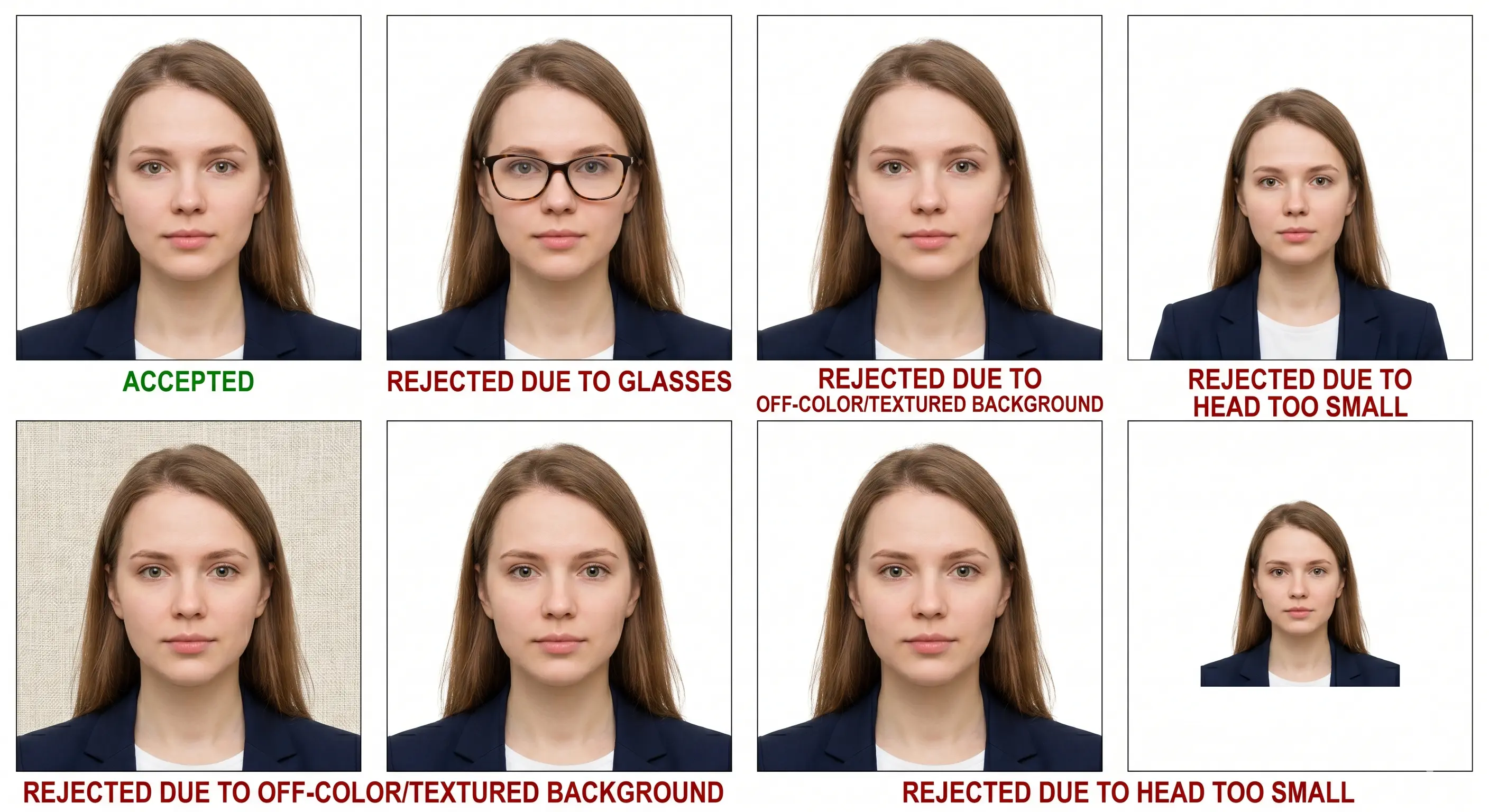
OCI applications can be delayed by weeks if the photo is rejected. The most common rejection reasons come from photos that look acceptable on screen but fail the technical checks at VFS Global or the Indian mission. Here is what typically causes an OCI photo to be returned.

Non-square Dimensions

OCI photos must be perfectly square at 51 × 51 mm. Rectangular photos cropped from standard Indian passport prints (35×45 mm) are immediately rejected.

Wrong File Size

The OCI portal accepts files between 10 KB and 200 KB only. Files outside this range cannot be uploaded regardless of how correct the photo looks.

Incorrect Background

Any background that is not plain white results in rejection. Light blue, grey, beige, cream, or patterned walls are not acceptable under any circumstances.

Head Size Issues

The head must cover 50 to 70 percent of the frame. Too small (standing too far from the camera) or too large (too close) are both common failure points.

Shadows Behind the Head

Shadows on the wall or face fail automatic checks. Stand a metre away from the wall and use even natural lighting from the front.

Glasses or Reflections

Wearing glasses, sunglasses, or tinted lenses is not allowed. Remove all eyewear before taking the photo, even prescription glasses worn daily.

Smiling or Open Mouth

OCI requires a neutral expression with the mouth closed. Smiling, frowning, or showing teeth leads to rejection at the photo verification stage.

Edited or Filtered Photos

Beauty filters, skin smoothing, or any digital alteration of facial features is treated as image manipulation and will be rejected.

Common OCI Portal Photo Upload Errors and How to Fix Them

The OCI online portal at ociservices.gov.in has an automatic photo validation system. If your photo fails any of the technical checks, you will see an error message and cannot proceed with the application. Here are the most common OCI photo upload errors and exactly how to fix each one.

Error: File size exceeds 200 KB

Your JPEG file is larger than 200 KB. The portal cannot accept it regardless of photo quality.

Fix: Re-export the photo at lower JPEG quality (70–80%) or reduce the pixel dimensions. Our tool handles this automatically.

Error: File size too small (below 10 KB)

The file has been compressed too aggressively and falls below the 10 KB minimum. The portal will reject files this small because they are likely too low quality.

Fix: Re-export at a higher JPEG quality setting, or use a higher starting resolution. Our tool stays safely within the 10–200 KB range.

Error: Photo is not square

The image dimensions are not equal. The OCI portal requires a perfectly square photo (same width and height). A 35×45 mm passport photo will trigger this error.

Fix: Crop the photo to exactly 51×51 mm (or any equal pixel dimensions such as 600×600 px). Our tool does this automatically.

Error: Face not detected

The portal's face detection algorithm cannot find a face in the photo. This happens when the head is too small, partially cropped, facing sideways, or the image quality is too low.

Fix: Ensure your face is centred, front-facing, and occupies at least 50% of the frame. Use a photo taken in good lighting at a minimum of 300×300 pixels.

Error: Background not white

The automatic system detected that the background is not a plain white colour. Even slightly off-white or cream backgrounds can trigger this.

Fix: Use our tool to automatically replace the background with a verified plain white. Do not try to manually paint or adjust the background in a photo editor.

Error: Photo is blurry or low resolution

The image is below the 200×200 pixel minimum or is too blurry to pass quality checks. This often happens with cropped selfies or heavily compressed images.

Fix: Take a new photo in good lighting using the rear camera. Upload a high-resolution original (not a screenshot or forwarded image) to our tool.

Error: Invalid file format

The OCI portal only accepts JPEG (.jpg / .jpeg) files. PNG, HEIC, WebP, TIFF, and PDF formats are not supported.

Fix: Our tool exports the final photo in JPEG format automatically. If you have a PNG or HEIC, upload it to our tool and download the JPEG output.

Error: Eyes not open or looking away

The photo validation checks that both eyes are open and looking forward. Squinting, looking sideways, or closed eyes during the shot cause this error.

Fix: Take the photo with both eyes fully open, looking directly into the camera lens. Avoid shooting in very bright conditions where you might squint.

Fastest fix: Upload your photo to our OCI card photo tool. It checks dimensions, file size, background colour, and face positioning automatically and exports a portal-ready file that passes all OCI upload validations.

OCI Photo Requirements for Children and Babies

OCI cards are issued to persons of Indian origin of all ages, including newborns and young children. The photo requirements for children are the same as for adults in terms of size, background, and format. However, there are some practical differences in how to take and submit photos for infants and young children.

OCI Photo for Infants and Newborns

For newborns and very young infants who cannot sit upright unsupported, the photo can be taken with the baby lying on a plain white sheet or blanket. The Ministry of Home Affairs and VFS Global allow this exception for very young children. Key rules still apply:

  • The background must be plain white — use a white sheet, not a patterned or coloured one.
  • The baby's face must be clearly visible and the eyes must be open if possible.
  • No adult hands, props, or other items should be visible in the frame.
  • The face should fill approximately 50–70% of the frame, same as adults.
  • The photo must be a square 51 × 51 mm / 2 × 2 inches.

OCI Photo for Toddlers and Young Children

Children old enough to sit unsupported should be photographed the same way as adults — front-facing, against a plain white background, with a neutral expression. A few tips for photographing young children:

  • Seat the child in a plain white highchair or have them stand against a white wall.
  • Use natural lighting from a window to get a soft, even result without shadows.
  • Have another adult hold the child's attention from just above the camera to get them to look at the lens.
  • Take many shots and choose the one with both eyes open and the clearest expression.
  • Avoid dressing children in white, which can blend into the background at the edges.

OCI Photo for Minors — Common Questions

Age GroupPhoto ApproachKey Consideration
Newborn (0–3 months)Lying on white sheetEyes open if possible; no props
Infant (3–12 months)Lying or supported uprightNo adult hands visible in frame
Toddler (1–3 years)Seated against white wallNeutral expression; eyes forward
Child (3–12 years)Standing or seated, same as adultSame rules as adults apply fully
Teen (13–17 years)Same as adultNo glasses; neutral expression

OCI re-issue for children: Children's OCI cards must be re-issued each time a new passport is issued. A fresh compliant photo is required for each re-issue. Use our OCI photo maker to create a new photo that meets all current specifications at the time of reapplication.

Tips for Getting an Approved OCI Photo

OCI applicants often submit a photo three or four times before getting one approved. These practical tips will help you get it right on the first attempt and avoid resubmission delays that can set your application back by weeks.

  • Use natural daylight. Stand facing a window in the morning or afternoon. Avoid overhead lights that create shadows under the eyes and chin.
  • Find a pure white wall. Off-white or cream-coloured walls fail OCI automatic background checks. Use a sheet of white paper taped to the wall, or find a true white wall.
  • Stand about a metre from the wall. This distance keeps your shadow off the wall and gives even depth behind you.
  • Hold the camera at eye level. Place your phone on a stable surface at the height of your eyes. Avoid taking the photo from above or below — it distorts proportions.
  • Use the rear camera. The back camera has a significantly higher resolution sensor than the selfie camera and produces sharper images with less distortion.
  • Have someone help. A friend or family member taking the photo from one metre away gives more consistent framing than a self-timer or selfie.
  • Wear darker, solid clothing. Dark colours give clean contrast against the white background and help the head boundary detection work correctly.
  • Remove glasses and large accessories. Take off eyewear, hats, large earrings, and any item that obstructs the face or creates shadows.
  • Skip filters and beauty modes. Disable all skin smoothing and beauty effects in your camera app before shooting.
  • Check sharpness before uploading. Zoom in to 100% on the photo and confirm it is sharp. A blurry photo from a camera shake or out-of-focus shot cannot be fixed after the fact.
  • Match your current appearance. OCI photos must be taken within the last 6 months. If you have significantly changed your hair, beard, or face since your last OCI photo, a new photo is required.

OCI Photo vs Indian Passport Photo vs India Visa Photo

Many applicants assume an OCI photo, an Indian passport photo, and an India visa photo are interchangeable. They are not. Each document type has distinct dimensions, and reusing one for another will result in automatic rejection. Here is a side-by-side comparison of all three.

SpecificationOCI Card PhotoIndian Passport PhotoIndia Visa Photo
Dimensions51 × 51 mm (2 × 2 in), square35 × 45 mm, rectangular51 × 51 mm (2 × 2 in), square
BackgroundPlain whitePlain whitePlain white
Head height50–70% of frame25–35 mm from chin to crown50–70% of frame
File formatJPEGJPEG / printedJPEG
File size10 KB – 200 KBVaries by portal10 KB – 300 KB
GlassesNot allowedNot recommendedNot allowed
Issuing authorityMinistry of Home Affairs / VFS GlobalMinistry of External Affairs / Passport SevaIndian High Commissions / VFS Global
Used forOCI registration, re-issue, misc. servicesIndian passport applicationsIndia tourist, business, e-Visa
Our toolOCI Photo MakerPassport Photo MakerIndia Visa Photo Maker

OCI and India Visa photos share the same 51×51 mm dimensions, but the file size limits and portal submission systems are different. Always use the correct tool for each application to ensure the output is optimised for the right portal.

OCI Photo Requirements for Re-issue and Renewal

OCI cards must be re-issued when certain changes occur. In each case, a new compliant OCI card photo is required — you cannot reuse a photo from a previous application, even if it was accepted before.

When is OCI Re-issue Required?

  • After passport renewal: When your passport is renewed and you receive a new passport number, you must apply for OCI re-issue with a new photo.
  • After a name change: If your name has changed due to marriage, divorce, or a legal name change, OCI re-issue is required with an updated photo.
  • After change of personal particulars: Changes to nationality (for dual citizens), address, or other key details require re-issue.
  • Loss or damage of OCI card: A lost or damaged OCI card requires reapplication with a fresh photo.
  • Child turning 20 years old: OCI cards issued to minors expire at age 20 and must be renewed with a new photo reflecting the applicant's adult appearance.
  • Child turning 50 years old: A second OCI card renewal is required at age 50.

Photo Requirements for OCI Re-issue

The photo requirements for OCI re-issue are identical to those for first-time registration. The photo must be:

  • Taken within the last 6 months (a photo from your original OCI application is not acceptable)
  • 2 × 2 inches (51 × 51 mm), square format
  • Plain white background
  • Head covering 50–70% of the frame
  • JPEG format, 10 KB to 200 KB

OCI Card Photo — Frequently Asked Questions

What is the official OCI card photo size?
The official OCI card photo size is 2 × 2 inches (51 × 51 mm) in a square format. The head must occupy between 50% and 70% of the frame, with a plain white background. This is different from the Indian passport photo, which is 35 × 45 mm rectangular.
What is the OCI photo size in pixels?
The OCI portal requires a minimum of 200 × 200 pixels. For best quality — suitable for both digital submission and printing — a resolution of 600 × 600 pixels at 300 DPI is recommended. The file must be a JPEG between 10 KB and 200 KB in size.
What is the OCI photo size in mm?
The OCI card photo size in mm is 51 × 51 mm — a perfect square. In centimetres, this is 5.1 × 5.1 cm. In inches, it is 2 × 2 inches.
What file size does the OCI portal require?
The OCI online portal accepts JPEG files between 10 KB and 200 KB. Files smaller than 10 KB or larger than 200 KB cannot be uploaded. Our tool automatically sizes the output to fit this range.
Can I reuse an Indian passport photo for OCI?
No. The Indian passport photo is 35 × 45 mm rectangular, while the OCI photo is 51 × 51 mm square. The two formats are not interchangeable. Submitting a passport photo for an OCI application will result in immediate rejection at the portal or at VFS Global.
Can I take an OCI photo with my phone?
Yes. Any modern smartphone produces images at resolutions far exceeding the OCI minimum. Use the rear camera, good natural lighting, and a plain white wall. Disable beauty mode and filters. Our OCI photo tool will format the output to all official requirements automatically.
Are glasses allowed in OCI photos?
No. Glasses, sunglasses, and tinted lenses are not allowed in OCI photos under any circumstances. Remove all eyewear before taking the photo, even if you wear prescription glasses daily. This rule applies to all ages including children.
What background colour is required for an OCI photo?
A plain white background is the only accepted option. Light grey, off-white, beige, cream, blue, or any other colour is not accepted. The OCI portal's automatic system will reject any photo that does not have a sufficiently white background.
What are OCI photo requirements for children?
OCI photo requirements for children are the same as for adults regarding size (51 × 51 mm), background (plain white), format (JPEG, 10–200 KB), and face position. For infants who cannot sit upright, the photo may be taken with the baby lying on a plain white sheet. No adult hands or props should be visible in the frame.
What are OCI photo requirements for babies and newborns?
For newborns and young infants, the photo can be taken with the baby lying on a plain white sheet or blanket. The background must be entirely white. The baby's face must be clearly visible with eyes open if possible. The photo must still meet all other OCI requirements: 51 × 51 mm, JPEG, 10–200 KB, and no props or adult hands visible in the frame.
What is the OCI photo requirement for a minor?
Minors (children under 18) must have a photo that meets the same technical specifications as adults. For children aged 3 and above, this means a front-facing, plain white background, neutral expression photo taken in the same way as for an adult. OCI cards for minors must be re-issued each time a new passport is issued, or when the child turns 20.
Can I wear a beard in my OCI photo?
Yes, a beard is allowed in OCI photos as long as it reflects your current everyday appearance. The photo must show your natural appearance. You should not shave your beard specifically for the photo if you normally wear one, as the purpose is to reflect how you actually look for identification purposes.
Can I wear a hijab in my OCI photo?
Yes. Head coverings worn for religious reasons are permitted in OCI photos. However, the face must be fully visible from chin to forehead and from ear to ear. No part of the face should be covered or in shadow. The same rule applies to turbans and other religious head coverings.
Do I need a printed photo for OCI applications?
Most OCI applications submitted online through the OCI portal require only a digital JPEG upload. However, some VFS Global service centres also request two printed photos (2 × 2 inches) at the biometric appointment. Our tool provides both a digital file and a printable 4 × 6 inch sheet with multiple copies.
Can I create an OCI card photo online for free?
Yes. Our online OCI card photo maker creates a fully compliant 2 × 2 inch JPEG meeting all official OCI photo specification requirements, correctly sized for the OCI portal upload and ready to print.

How recent must my OCI photo be?
The photo must be taken within the last 6 months and must reflect your current appearance accurately. Old photos — even if technically compliant in terms of size and format — will be rejected if the person's appearance has changed significantly.
What happens if my OCI photo is rejected?
If your photo is rejected by the OCI portal, you will receive an error message explaining the reason. You will need to upload a corrected photo before you can proceed with the application. If the rejection happens after submission at VFS Global, the entire application is returned and you must resubmit from the beginning with a compliant photo.
Is the OCI photo the same size as a US passport photo?
Yes, both the OCI card photo and the US passport photo are 2 × 2 inches (51 × 51 mm) square. The dimensions are the same. However, the file size and resolution requirements for the OCI portal are different from the US State Department's photo tool, so always use the correct country-specific tool. See our US passport photo page for those requirements.
Can I smile in my OCI photo?
No. OCI photos require a neutral expression with the mouth closed. A natural, relaxed expression is correct. Smiling, frowning, raising eyebrows, or showing teeth will cause the photo to be rejected by the portal's automatic face verification system.
What is OCI miscellaneous services photo requirement?
OCI miscellaneous services — such as name changes, address updates, or corrections — require the same photo as a first-time OCI application: 51 × 51 mm square, plain white background, JPEG between 10 KB and 200 KB. A photo taken within the last 6 months is required.
How many photos do I need for an OCI application?
For online OCI applications, you need to upload one digital JPEG photo to the OCI portal. If you attend a biometric appointment at VFS Global, most centres require two additional printed 2 × 2 inch photos. Our tool provides a printable sheet with multiple copies for this purpose.
Can I edit my OCI photo in Photoshop or Lightroom?
Basic adjustments like exposure correction, white balance, and cropping are generally acceptable. However, any editing that alters your facial features — such as skin retouching, blemish removal, face shaping, eye brightening, or beauty filters — is considered image manipulation and will result in rejection. Use our tool instead, which only corrects the background and dimensions without touching the face.
What is the OCI photo format required by VFS Global?
VFS Global requires OCI photos to be in JPEG format, 51 × 51 mm (2 × 2 inches), with a plain white background. For the digital upload, the file must be between 10 KB and 200 KB. For in-person biometric appointments, two printed copies of the same photo are typically required.
Why does the OCI portal say my photo is invalid even though it looks correct?
The OCI portal's validation system checks multiple criteria simultaneously: dimensions must be exactly square, file size must be 10–200 KB, the image must be in JPEG format, the face must be detected and correctly positioned, the background must be sufficiently white, and there must be no shadows on the face or background. A photo can appear correct on screen but still fail one of these technical checks. Using our OCI photo tool ensures all parameters are met before you upload.
Can I use an OCI photo for Indian visa applications?
OCI card holders do not need an Indian visa, but if you are applying for an Indian visa separately, you would need an India visa photo. The dimensions for India visa photos are also 51 × 51 mm square, but the submission portal and file size requirements may differ slightly. Use the tool designed for the specific document you are applying for.

Create Your OCI Card Photo Online

Official 51 × 51 mm dimensions, automatic background correction, correct pixel resolution, and a portal-ready JPEG in seconds.

  • No signup required
  • Instant processing
  • OCI portal compliant (10–200 KB)
  • Mobile and desktop friendly
  • Works for adults, children, and babies
Create OCI Card Photo